How Do I Change Location Precision?
You choose how precisely others can see your location. First check whether a personal rule or a group rule controls their access.
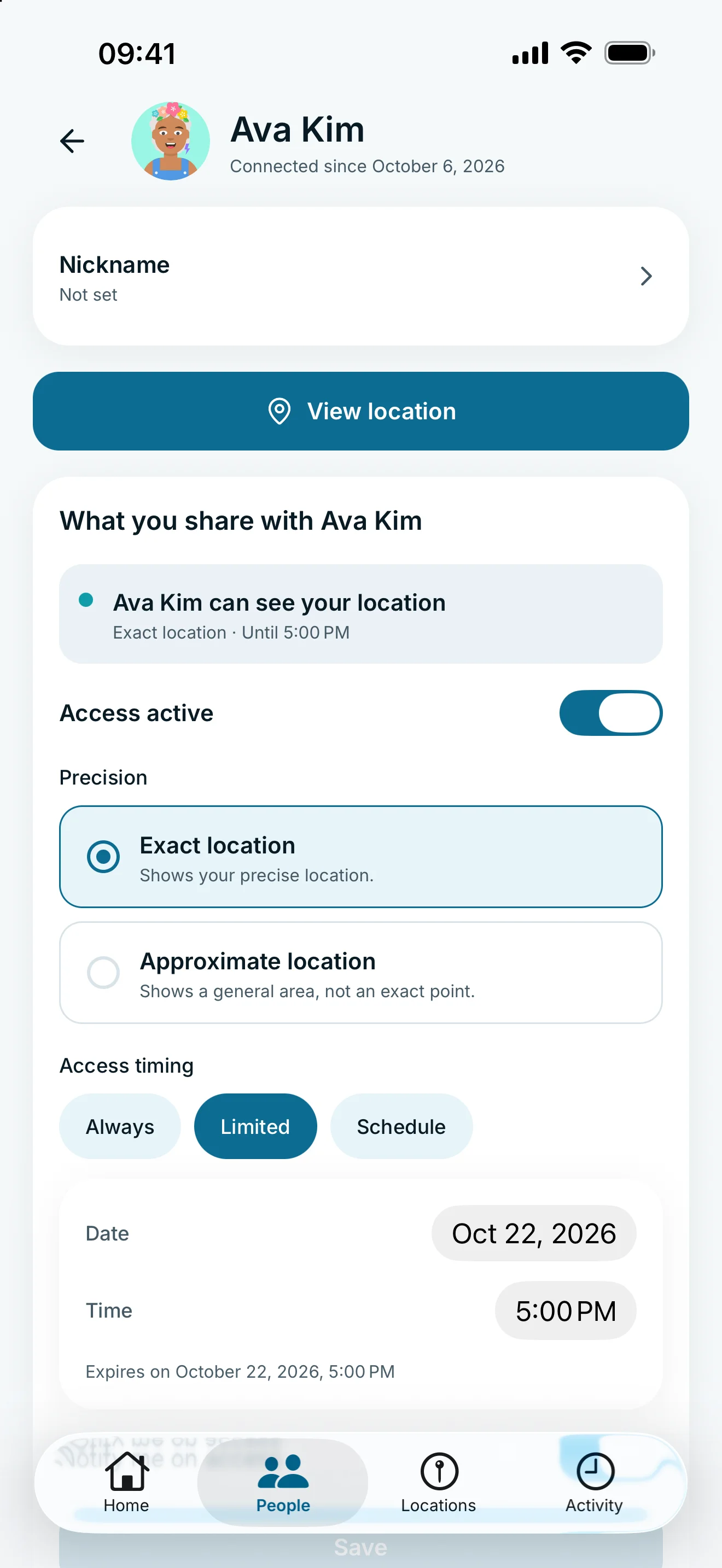
Open the person and their sharing rule. Choose Exact location or Approximate location and save. If a group manages their access, edit the group rule instead; that change applies to all members.
Choose exact or approximate
- Open the person under People.
- Find What you share with … and the sharing rule.
- Under Precision, choose Exact location or Approximate location.
- Check access and timing, then tap Save, or Grant access for a new rule.
Exact shows your precise position; approximate shows a general area rather than a precise point. Edit your outgoing rule. The map of the other person’s location is not the setting for what you share.
When a group manages access
Person details indicate when a group manages the permissions. Open View group access, then Manage access in the group.
Changing that rule affects all members. The person’s stored personal rule remains inactive during membership. If only one person needs different settings, review their group assignment and the consequences of removing or moving them.
Approximate location does not switch sharing off. Even a general area can reveal something about your surroundings.
Frequently asked questions
Do I need glancy+ for approximate location?
No. Precision control is available for free.
Does this change how I see the other person?
No. You are editing what you share with them. They control their own location precision.