How Do I Create a Group in glancy?
Create the group first, then decide who belongs to it and what access those people should receive.
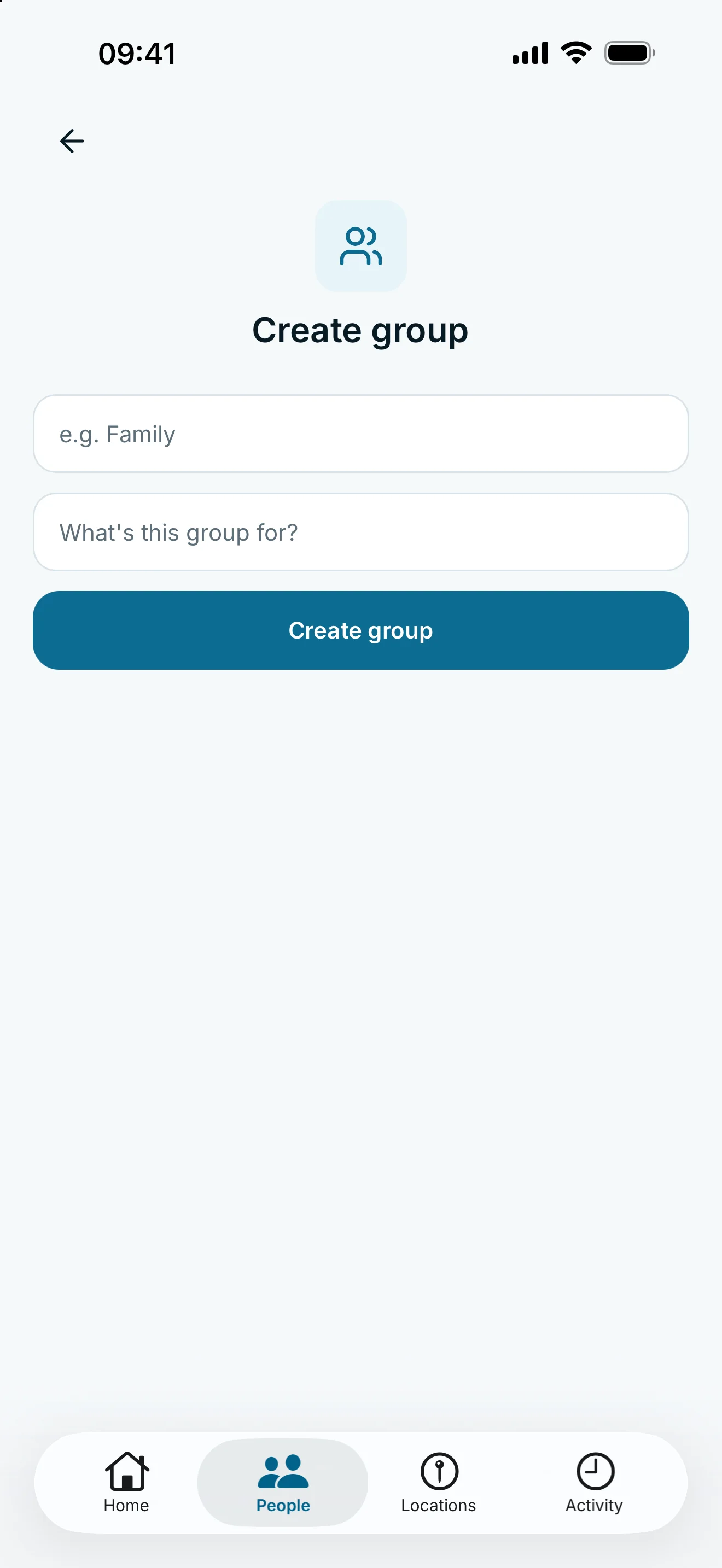
Open Groups under People and tap New group. Enter a name and an optional description. After creating it, add accepted connections and manage the shared access rule.
Set a name and description
- Open People, then Groups.
- Tap New group.
- Enter a group name, such as “Family”. A description is optional.
- Tap Create group.
The new group opens. Creating it does not by itself set up location sharing for new people.
Add members and configure access
Inside the group, tap Add and choose accepted connections. Read the access preview. An active group rule may give added people access immediately. Without an active rule, they initially receive no access through the group.
Use Manage access to set the shared rule. During membership it replaces the stored personal rule. Open Edit group to rename your group later.
The free plan allows one editable group; glancy+ allows up to ten. If a limit appears, check your existing groups and active Plus access. Automatically managed groups cannot be edited like your own groups.
Frequently asked questions
Do I have to add all members immediately?
No. You can create the group first and manage members later. Check whether an active group rule already applies when adding people.
Can I rename it later?
Yes. Open Edit group for a group you created. Automatically managed groups are excluded.