How Do I Delete a Group in glancy?
Deleting a group does not automatically end every location share with its former members.
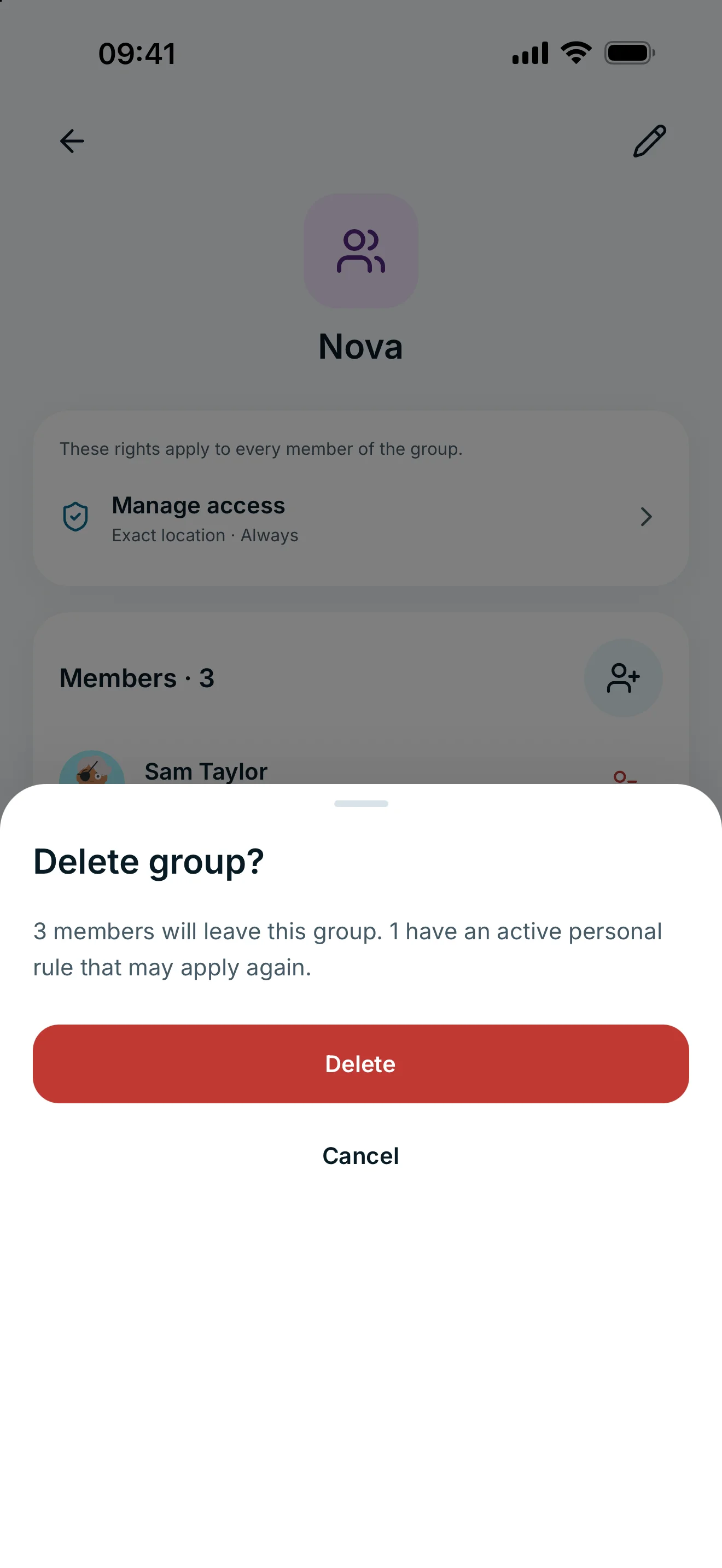
Open the group, choose Delete group and read the access warning before confirming. Connections remain in place. Stored personal sharing rules may apply again afterwards and grant access.
Delete a group you created
- Open the group under People → Groups.
- Scroll to Delete group. The action is also available when editing your own groups.
- Read how many members will leave and how many have an active stored personal rule.
- Check those personal rules first if needed, then confirm Delete.
Groups managed automatically by glancy cannot be edited or deleted. If the action is missing, check whether this is an automatic group.
What remains after deletion?
The group and its member assignments are removed, but your connections remain. Stored personal rules can apply again outside the group. A paused group rule therefore does not guarantee that nobody will have access after deletion.
Use the global pause if you want to stop sharing with everyone temporarily. To remove just one member, remove them individually and review the option to pause their personal access afterwards.
Deleting a normal group does not cancel glancy+ and does not manage a glancy+ family subscription.
Frequently asked questions
Will I lose my connections?
No. People leave your group, but your connections remain. Stored personal location permissions may apply again.
Does the global pause delete my group?
No. The global pause interrupts location sharing. Groups and their settings remain in place.