How Do I Set a Private Nickname?
A contact can appear as “Mum” to you while keeping their own profile name for everyone else.
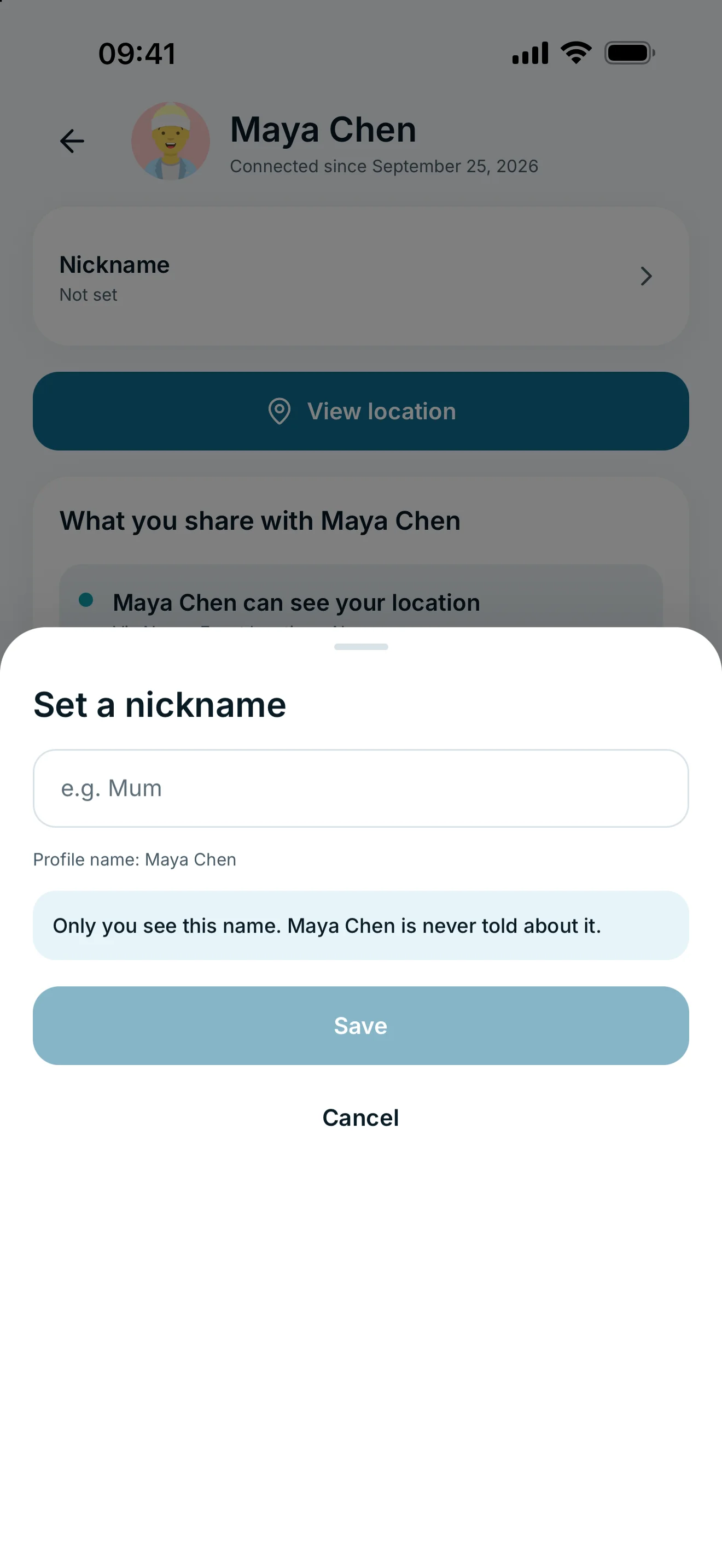
With glancy+, open a contact under People and tap Nickname. Enter your private name for them and save. Only you see it; the other person’s profile name is unchanged.
Give a contact a private name
- Open People and select the connection.
- Tap Nickname.
- Enter the name you want to use for this person.
- Tap Save.
Setting and changing a nickname requires active glancy+ access. Without it, the nickname action opens the Plus offer. Your accepted connection must still exist.
The editor explains that only you see the name. The other person is not told about this change.
Reset it and distinguish profile names
Open Nickname again and choose Reset to remove the private name. The person’s profile name is shown again. Their actual profile name remains visible in the editor for reference.
Your own profile name is also labelled Nickname in account settings. That belongs to your profile and differs from a private name for a connection. This guide covers only the private contact nickname available with glancy+.
If the connection has since been removed, return to the current People list. A private name does not create a separate connection or restore deleted permissions.
Frequently asked questions
Can the other person see my nickname for them?
No. Only you see this private contact name. Their own profile name remains unchanged.
Does a nickname change the glancy ID?
No. Their glancy ID stays the same. A private nickname only helps you recognise them.