How Do I Set Up a Schedule with glancy+?
Schedules restrict sharing to recurring weekly windows. Each window keeps its saved timezone when you travel.
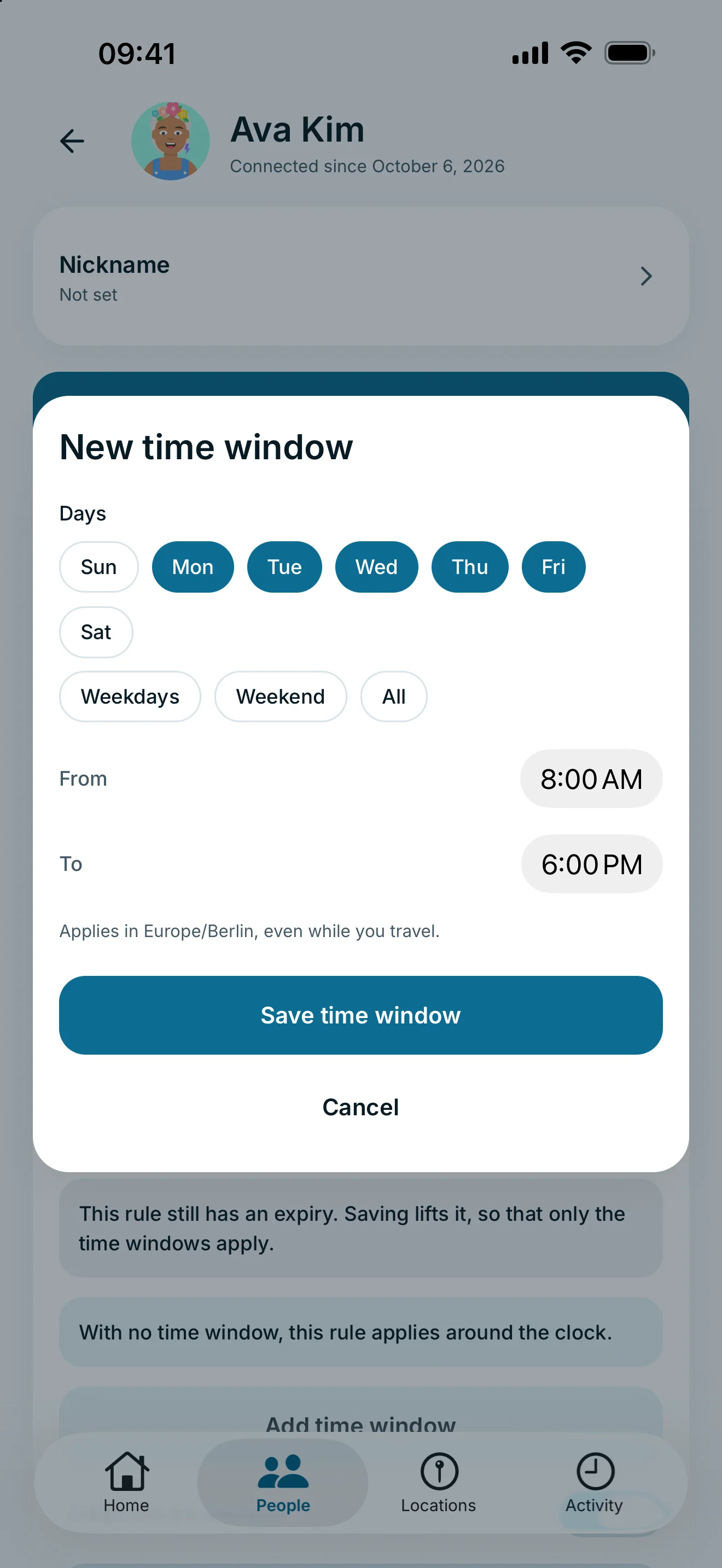
In a sharing rule, choose Schedule under Access timing and add a window with weekdays, start and end times. Check the displayed timezone and save. Creating and editing windows requires glancy+.
Create a recurring time window
Creating and editing requires glancy+. Open a person’s personal sharing rule or Manage access in a group. A group assignment means the group rule applies.
- Under Access timing, select Schedule.
- Tap Add time window.
- Choose weekdays and set From and To.
- Check the displayed timezone and tap Save time window.
- Also save the sharing rule if you are creating it or have other unsaved changes.
When you switch an expiring share to a schedule and save the sharing rule, its previous expiry is removed. Time windows then limit access. Review the form’s notice and the existing expiry before saving.
Check the resulting list. If some windows could not be saved while creating a rule, the app shows a notice. Add any missing windows afterwards.
Multiple windows and travel
Access is possible inside a matching active window if the sharing rule is active and no global pause applies. Multiple windows are alternatives: one must match, not all at once. A sharing rule can have up to seven active windows.
An end earlier than the start means the window continues past midnight into the next day. Equal start and end times are not valid.
The timezone belongs to the saved window. It continues to apply in that zone while you travel. The editor explains any difference from the device zone and offers a deliberate switch.
Edit or remove windows
Open an existing window to edit it. Deleting the final window triggers a warning: without time windows, the share applies around the clock unless another restriction prevents access. Pause the sharing rule if you want to stop access altogether.
An existing schedule is not simply ignored when glancy+ ends, because that would widen access. Creating or editing windows requires Plus.
Frequently asked questions
What happens outside a time window?
This sharing rule does not allow access then. The rule’s active status and any global pause are also considered.
Does my schedule automatically follow my phone’s timezone?
No. Each window keeps its saved timezone. The editor shows differences from the device zone and offers an explicit switch.