Add a Person by glancy ID or QR Code
A connection is the first step. Find each other, confirm the request and then choose whether to share your location.
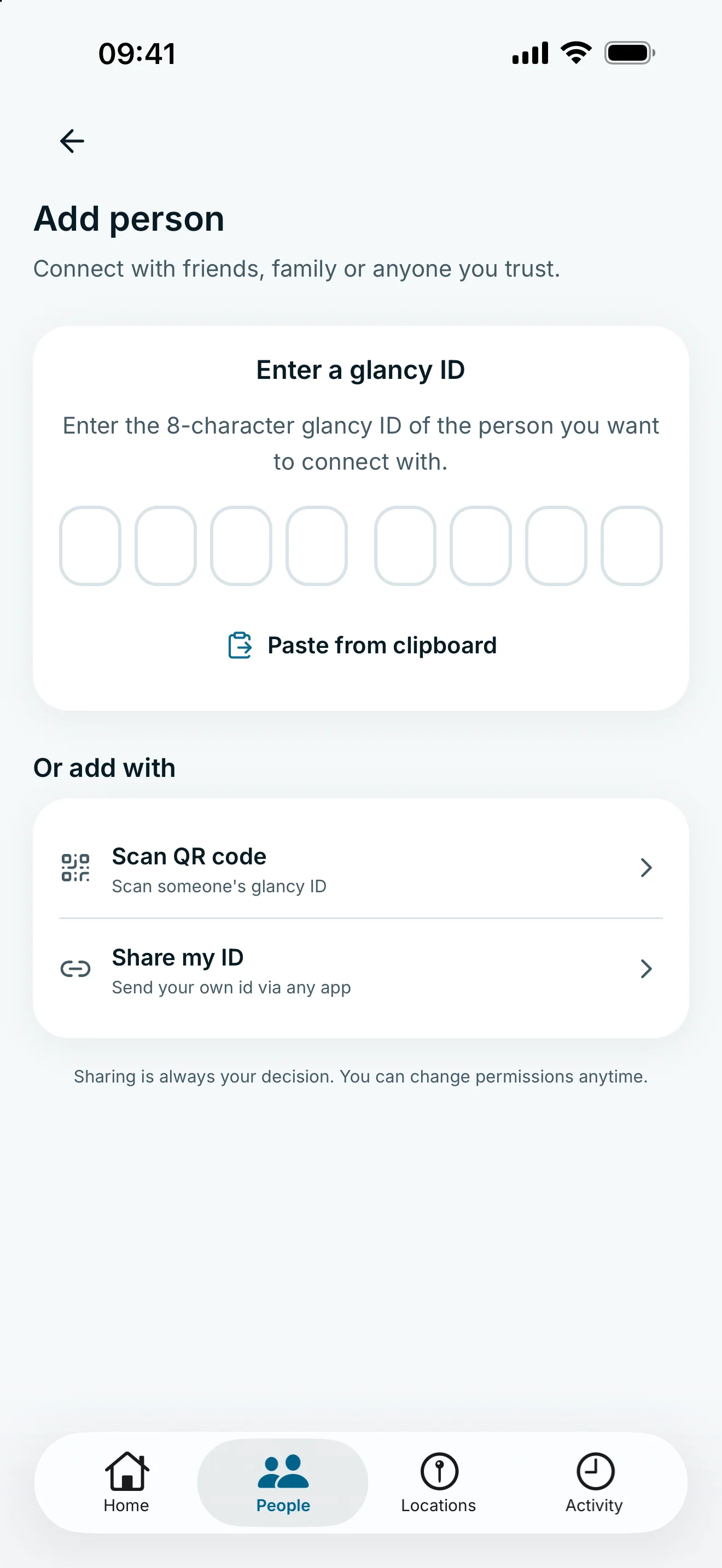
Open People and choose Add person. Enter the full eight-character glancy ID or scan the other person’s QR code. Once the request is accepted, you are connected. Sharing your location is a separate decision.
Connect using a glancy ID
Both people need a glancy account. Ask the other person for their full glancy ID. Their email address or profile name cannot replace it.
- Open People and tap Add person.
- Enter the full eight-character glancy ID. You can paste a copied ID from the clipboard.
- Open the matching profile and tap Send connection request.
- The other person accepts the request. Incoming requests also appear under People.
Sending a request does not confirm the connection. Check the name and avatar before sending it.
Scan a QR code or share your own ID
Under Add person, tap Scan QR code and allow camera access. Point the camera at the other person’s glancy ID QR code. Check their profile and send the request.
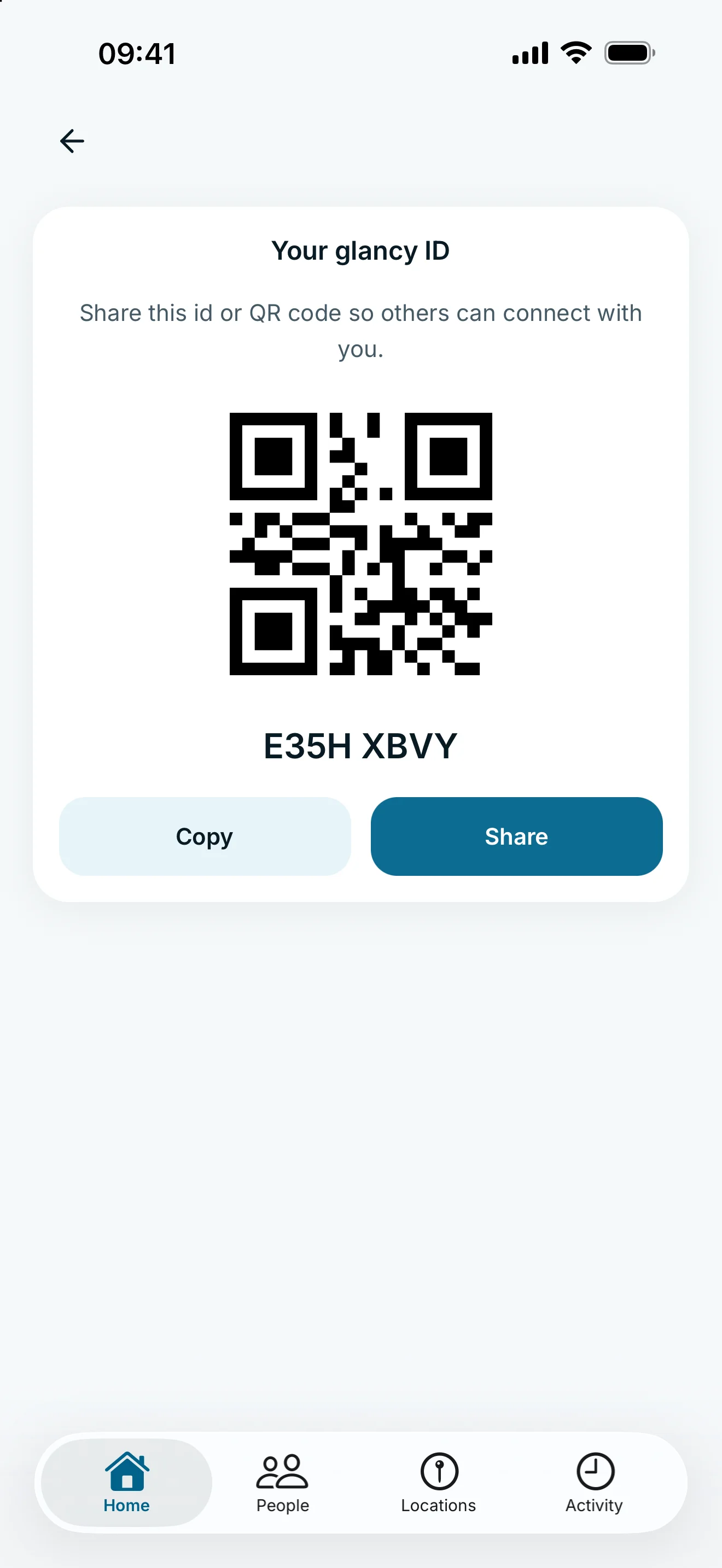
Your own code is under Settings → Your glancy ID. Share my ID lets you send your ID through another app. If others cannot find your account yet, check whether you have verified your email address.
Choose location sharing separately
An accepted connection does not share a location automatically. In the setup flow or the person’s access settings, choose whether they may see your location. You control precision, timing and notifications.
The other person controls their own sharing independently. Sharing with them does not automatically give you access to their location.
Frequently asked questions
Why can’t I find the person?
Check their full eight-character glancy ID. They also need to verify their email address. A profile name or email address is not a glancy ID.
Can we stay connected without sharing location?
Yes. Connecting and sharing a location are separate decisions. You can remain connected without granting location access.